
ARC, Reviews & Promotions connects advance readers, published reviews and campaigns to the same book. AuthorOps tracks the work and creates reminders. Pro authors can send one personal email at a time to a reader who agreed to receive it. AuthorOps does not publish reviews or run ads for you.
Choose a book
Open ARC, Reviews & Promotions from the sidebar. Select a title from the book selector and click Apply. The counts and lists will reflect that title. Overview shows due ARC follow-ups, recent live reviews, upcoming promotions and manually recorded results. Use the five workflow links to move through the launch.
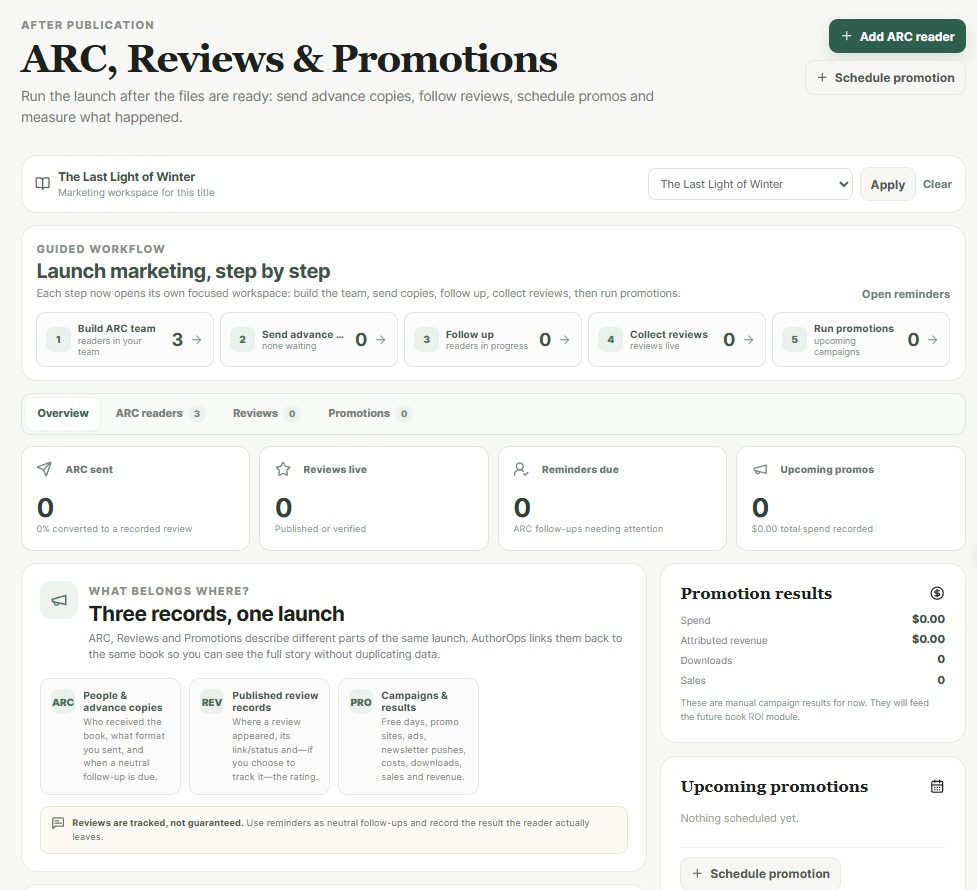
1. Build your ARC team
An ARC is an advance review copy shared with a reader before or around launch. Click Add ARC reader, select the book and choose an existing Contact or enter a new reader's name. A new reader is also saved in Contacts. You may record the email, source, preferred format, notes and expected review date.
Set Invited after inviting someone outside AuthorOps. Set Accepted when they agree or Declined when they decline. Accepted readers appear in 2 · Send copies. Changing a status records what happened; it does not send a message.
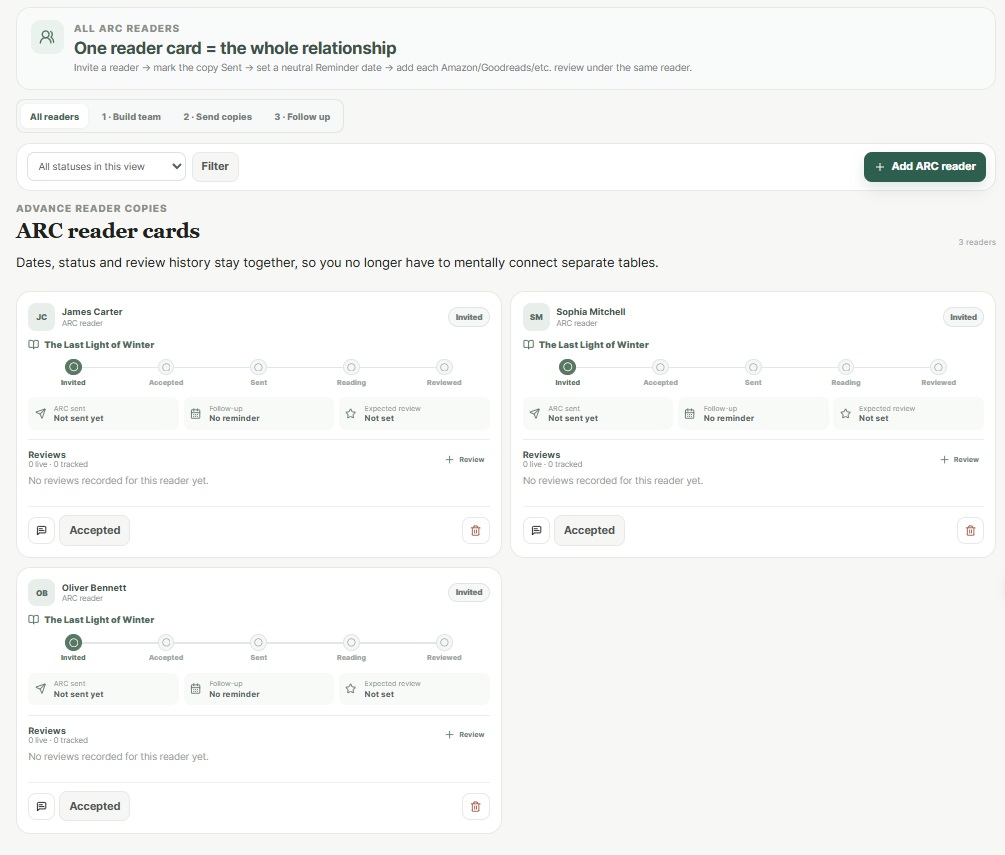
2. Send the copy and follow up
For an electronic copy, click Email reader on the ARC card. A Pro plan, a verified author email address, and an email address for the reader are required. Write a personal message to a reader who agreed to receive it. You can attach a private download link to a current book file in your connected Google Drive. The link allows up to 10 downloads and expires after seven days; you can revoke it from the message history. After the email service accepts a message with a file link, AuthorOps marks that ARC as Sent. An email without a selected file does not mark the copy as sent.
If you deliver the EPUB, PDF, paperback or another copy outside AuthorOps, click Mark sent yourself. AuthorOps records the sent date and moves the reader to 3 · Follow up. Use the card's edit action to adjust the format, dates or notes. Mark sent only records delivery; it does not email the reader.
Read and reply to reader emails
The Email reader page includes a Conversation with your outgoing messages and replies received by AuthorOps. A new reply also creates a bell notification; open it to jump directly to that reply. Replies appear under the message they answer, even if the reader writes from a different email address. On the ARC reader card, Correspondence lists messages by subject and date. Click a message to expand its preview, or click View conversation for the full thread. Messages sent before inbound replies were enabled may have replies only in your personal inbox.
To answer, choose Write a response on the received reply, edit the message, and click Send email. You can save a draft, reuse a saved template, and set Remind me if no reply while composing. That reminder creates a notification if the reader has not replied by the chosen date; it does not send a follow-up automatically.
Set a Reminder date. When it becomes due, the reader appears in Overview → ARC follow-ups and Notifications. Set Reading to record progress. Followed up moves a Reminder due reader back to Reading after you contact them. AuthorOps does not send that follow-up for you. Keep requests neutral and record the review the reader actually leaves.
3. Track reviews
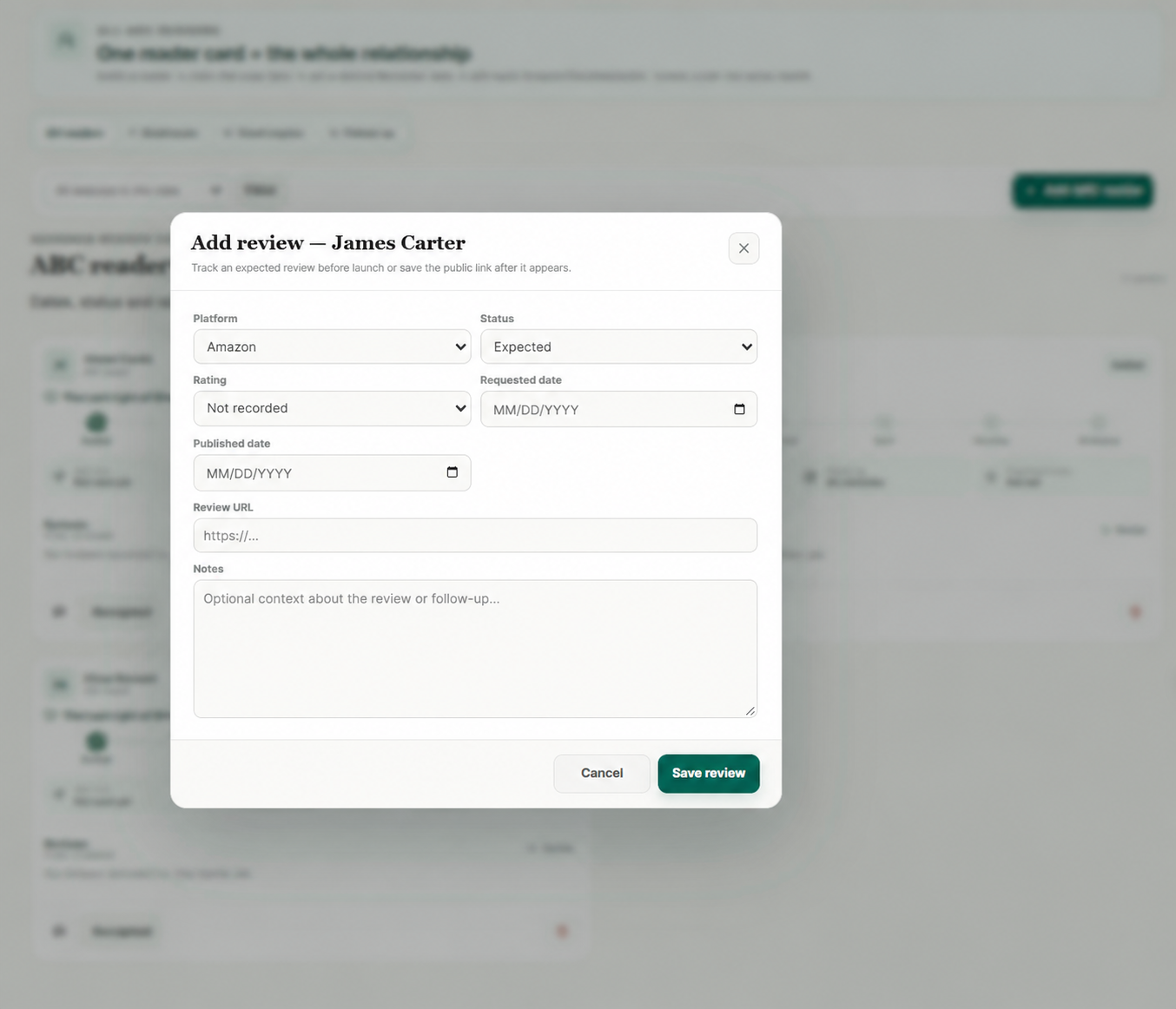
Click + Review on a reader card to link a review to that ARC, or use Reviews → Add review for an independent review. Choose its platform and status: Expected, Requested, Published, Verified or Skipped. When a review appears, enter the public URL and published date. The rating is optional.
Only Published and Verified count toward Reviews live. If linked to an ARC reader, either status also changes that reader to Reviewed and clears the reminder. An independent review without a linked ARC reader does not complete an ARC journey. If you later change or delete a published review, correct the reader's ARC status manually if needed.
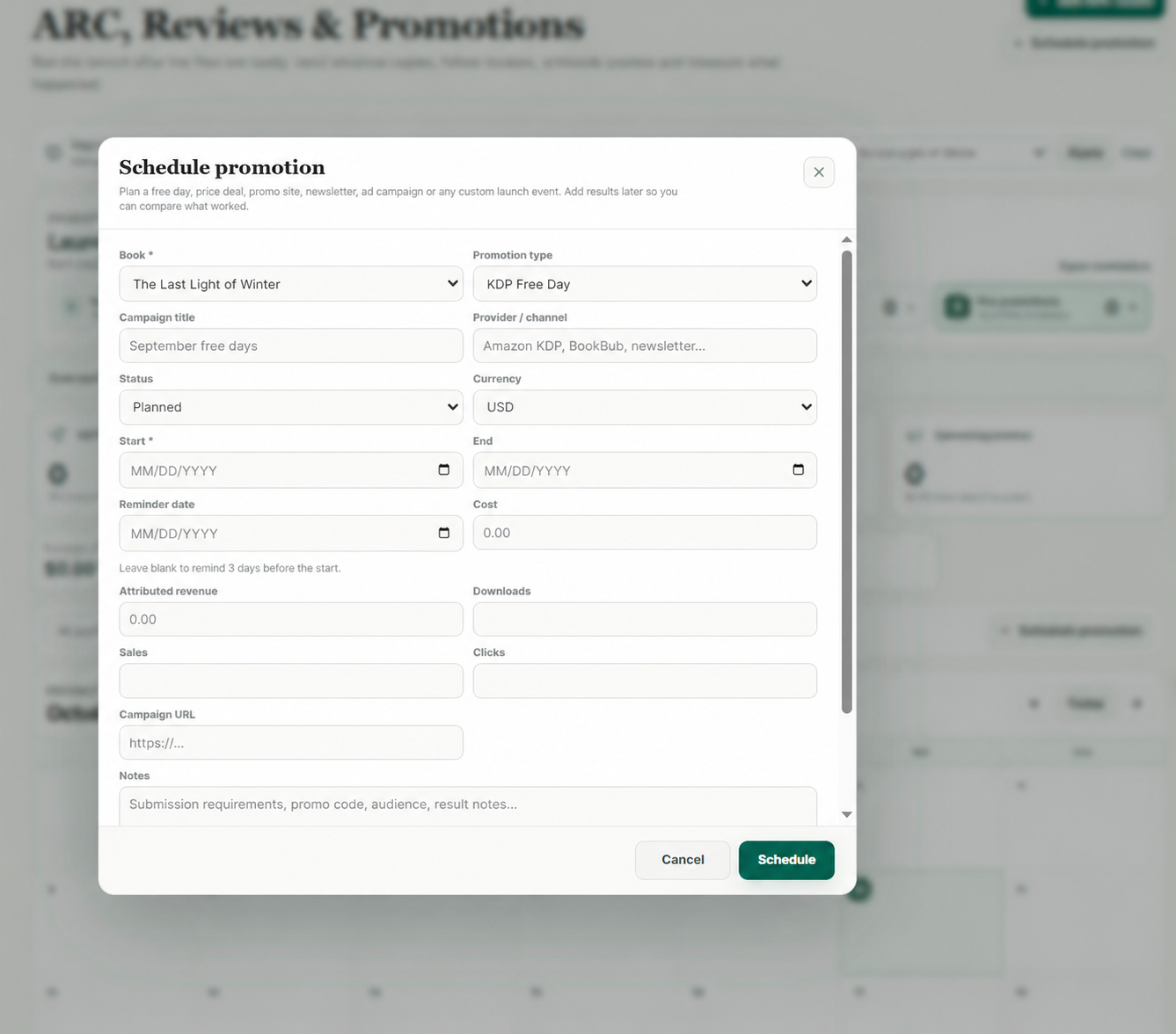
4. Plan promotions and record results
Open Promotions and click Schedule promotion. Select the book and campaign type, add a title or provider, and choose the required start date. The end date is optional. If you leave Reminder date empty, AuthorOps sets it to three days before the start.
Update the campaign status as it moves through Planned, Submitted, Scheduled, Live and Completed. Rejected and Cancelled are also available. The campaign appears in the calendar and table. After it runs, edit the record to enter cost, clicks, downloads, sales and attributed revenue. These results are manual entries, not data fetched from KDP, ad networks or newsletters. For meaningful totals, use one currency when comparing campaigns.
Understand the dashboard
- ARC sent: readers marked Sent, Reading, Reminder due or Reviewed.
- Converted to a recorded review: Reviewed ARC readers divided by ARC sent.
- Reviews live: Published or Verified review records.
- Reminders due: ARC readers whose reminder date has arrived and who are not Reviewed or Declined.
- Upcoming promos: future or ongoing campaigns that are not completed, cancelled or rejected.
Check it with a test reader
- Choose one book, add a reader named Test ARC Reader and confirm the card appears in Build team.
- Mark Accepted and then Mark sent. The reader moves to Follow up and ARC sent increases.
- Set a reminder for yesterday and open Notifications. An ARC follow-up appears.
- Add an Expected review from the reader card. Reviews live stays unchanged. Temporarily mark it Published: Reviews live increases, the reader becomes Reviewed and the reminder clears.
- Schedule a promotion for tomorrow. It appears in the calendar and Upcoming promos.
Delete the test review, campaign and ARC record afterward. Removing an ARC record keeps the Contact, which you can delete separately in Contacts. To ask for help, use Notifications → Contact the AuthorOps team.